Cloud Hosting CPU and RAM: Sizing for Real Traffic
By Deniz Aydin · Published · 4 min read
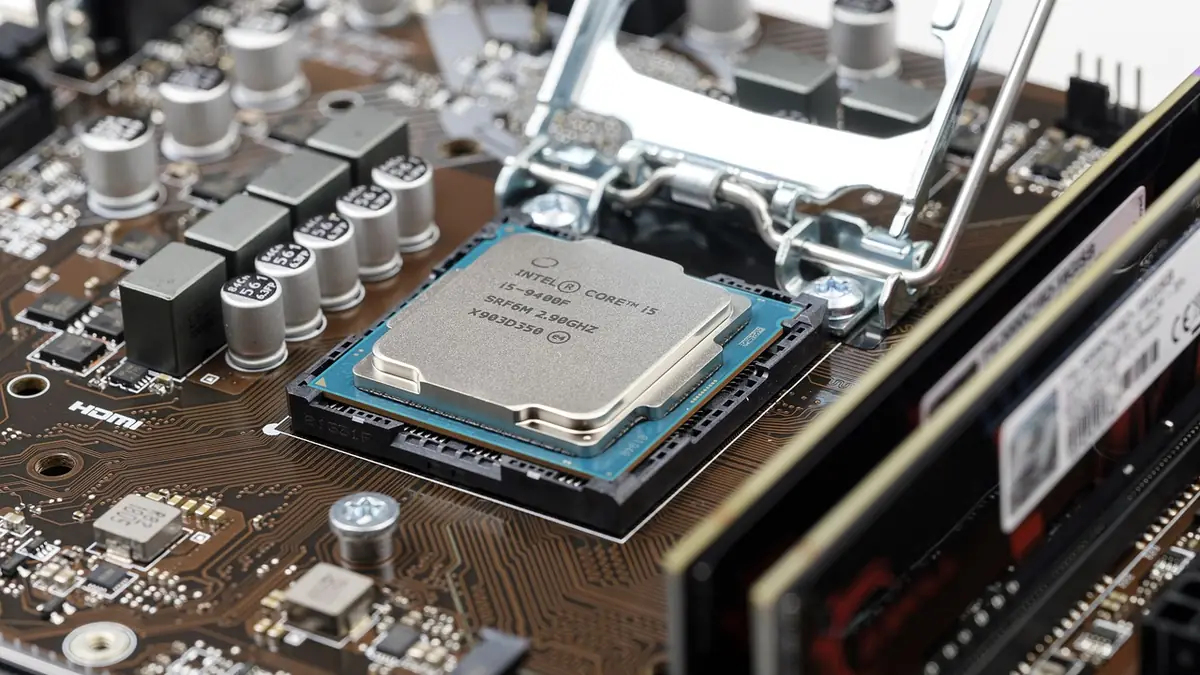
Most hosting plans are sold on disk space, but disk rarely limits a modern site. The two resources that decide whether pages load fast under load are CPU and RAM. Pick too little and your site crawls during traffic spikes; pick too much and you pay monthly for idle capacity.
This guide turns vague 'traffic' into concrete vCPU and memory ranges. You will see how monthly visits, caching, and plugin-heavy stacks translate into resource needs, plus when to scale up rather than out.
Why CPU and RAM matter more than disk
A typical WordPress page request spends most of its time in PHP execution, database queries, and plugin code — all CPU and memory work. Disk only matters for file storage and I/O, and even a large image library is served far faster from cache than from repeated disk reads. If your plan has 50 GB of disk but one shared vCPU, the disk is not your bottleneck.
Memory is the quieter constraint. Every PHP worker, database connection, and cache process claims RAM. When RAM runs out, the server starts swapping to disk or killing processes, and response times jump from tens of milliseconds to seconds. That is why a site that feels fine at low traffic can collapse at a few hundred concurrent visitors.
- CPU: PHP, plugin logic, database queries, TLS handshakes
- RAM: PHP workers, MySQL buffers, object cache, OS overhead
- Disk: static files and logs — rarely the limit
- Concurrency: the real trigger for CPU and RAM pressure
Start from monthly visits and concurrency
Monthly visits are a rough starting point, but concurrent users are what stress a server. A practical rule: peak concurrent visitors are roughly 1–3% of daily visits for content sites, higher for campaign-driven launches. If you get 30,000 monthly visits, expect 300–900 daily visits and perhaps 10–30 simultaneous users at peak.
Each uncached PHP request might take 100–300 ms of CPU time. At 30 concurrent users with a 2-second page load, you need enough workers to avoid queuing. With full-page caching, most requests never touch PHP, so the same traffic can run on half the CPU and RAM. Caching changes sizing more than any single hardware upgrade.
A practical sizing table
The table below assumes a WordPress-style site with a page cache and a small object cache. 'Plugin load' means the number of active plugins that run on every page — page builders, form and e-commerce plugins are heavy; SEO and analytics plugins are light. Treat the ranges as starting points, then watch real metrics for a week before committing.
For stores and membership sites, move one row up: dynamic carts, logged-in users, and checkout flows bypass full-page cache and hit PHP directly. Static brochure sites can often move one row down. The goal is headroom for peak hours, not for the yearly maximum.
- Light: under 10 plugins, mostly SEO/analytics
- Medium: 10–25 plugins, page builder, forms
- Heavy: e-commerce, memberships, page builder plus 25+ plugins
- Add one step for uncached logged-in traffic
How to read the numbers in practice
If your host shows CPU steal or sustained CPU above 70–80% for more than a few minutes at peak, you are under-provisioned. If memory usage sits above 85% and swap is active, add RAM before adding vCPU. If CPU is low but response times are high, the bottleneck is likely database queries or missing caching, not raw compute.
Measure before you buy. Run a week of monitoring during normal and peak periods, note PHP worker counts, MySQL slow queries, and cache hit ratio. A site with a 90% cache hit ratio can handle several times the traffic of the same site at 50%, on identical hardware.
When to scale up versus scale out
Scaling up means a larger plan with more vCPU and RAM; scaling out means adding servers behind a load balancer. For most sites under roughly 150,000 monthly visits, scaling up is simpler and cheaper. Beyond that, or when you need redundancy, a second application server plus a managed database starts to make sense.
Before scaling out, exhaust caching and database tuning. Object caching, query optimization, and a CDN for static assets often delay a hardware upgrade by months. If you are moving hosts anyway, review the beginner's checklist before switching cloud hosting so you do not carry old bottlenecks to a new server.
| Monthly visits | Plugin load | vCPU | RAM | Notes |
|---|---|---|---|---|
| Under 10,000 | Light | 1 | 1–2 GB | Shared vCPU is fine; add object cache if possible |
| 10,000–30,000 | Light to medium | 1–2 | 2 GB | Watch PHP workers at peak; enable full-page cache |
| 30,000–75,000 | Medium | 2 | 2–4 GB | Redis/Memcached helps; tune MySQL buffers |
| 75,000–150,000 | Medium to heavy | 2–4 | 4–8 GB | Consider managed database or separate cache |
| 150,000–300,000 | Heavy | 4+ | 8–16 GB | Load balancer and dedicated resources start to pay off |
| 300,000+ | Heavy | 4–8+ | 16 GB+ | Scale out with multiple app servers |
Budgeting RAM for workers and caches
PHP-FPM workers typically consume 40–80 MB each; a conservative plan is 50 MB per worker. If you want 20 workers, reserve about 1 GB for PHP alone, plus 512 MB–1 GB for MySQL, 256–512 MB for Redis or Memcached, and 512 MB for the OS. That lands you near 2.5–3 GB for a comfortable small-site stack.
On 2 GB, you can usually run 10–15 workers with a small database and little headroom. That is fine for a cached content site but tight for WooCommerce. When RAM is the constraint, reduce worker count and rely on caching rather than adding swap — swap on a busy web server turns latency spikes into outages.
Checking that your plan fits
After resizing, verify with real traffic. Watch peak-hour CPU, memory, and response times for two weeks. If the site is stable with 30–40% CPU and 60–70% memory at peak, you have room to grow. If you are near 80% on either, plan the next step before a campaign or product launch.
Also confirm your provider's CPU model. Many cloud plans use shared vCPU with burst credits; sustained load can be throttled. Dedicated or guaranteed vCPU costs more but behaves predictably. For uptime expectations and credits, see how to read cloud hosting uptime and SLA numbers before you sign a longer contract.
- Size for peak concurrency and PHP workers, not monthly visits alone.
- Page and object caching can halve CPU and RAM needs before any upgrade.
- Keep peak CPU under 70–80% and memory under 85% with swap off.
- Scale up first; scale out only after caching and database tuning.
Deniz has spent years writing about web hosting, domains and small-business infrastructure. The focus here is plain-language comparisons, honest cost breakdowns and checklists that readers can act on. Every guide is written with the practical site owner in mind rather than the data centre engineer.